Use this guide if you handle company payroll or HR. For your own contribution record, use the My.SSS member guide. Never enter an SSS password or employee record on this website.
Open the official SSS employer portal
Open My.SSS employer login →. Use the company’s registered User ID and password. Your personal SS number and member credentials belong to a different account. If the direct page moves, start from sss.gov.ph and choose the employer route.
Use Member to check your personal contributions and Employer for company reporting and remittance. Signing in does not submit an employee report or make a payment.
Register a My.SSS employer account
Business registration with SSS and creating online access are separate tasks. If the business is not yet registered, follow the SSS employer registration instructions, including the Philippine Business Hub/Central Business Portal route where applicable. Reporting initial employees may be done through that portal or My.SSS. Do not create a personal member account as a substitute for employer registration.
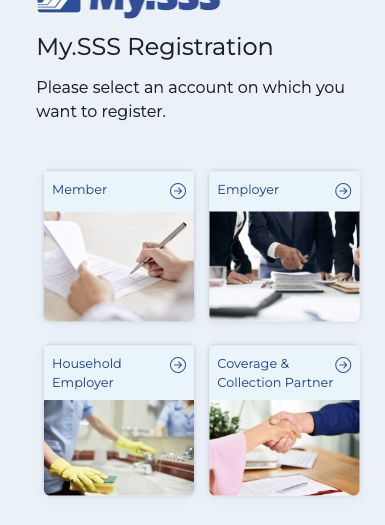
- From the SSS website, choose account creation and Employer.
- Enter the employer information exactly as registered with SSS. Review it before submitting.
- Open the registration message sent to the company’s registered email address.
- Complete the authorized-signatory details. A sole proprietor follows the proprietor option; other businesses provide the authorized signatory.
- Wait for the servicing branch’s validation. Approval enables password setup through the email link. A rejection email identifies the reason to correct.
- After activation, confirm the employer record and authorized account access before reporting or remitting.
Keep access with authorized company staff and use an email address the business controls. If the previous payroll officer left, use the employer recovery or record-update process rather than continuing to share that person’s password. Source: SSS employer account registration.
Where do I find the SSS employer ID number?
Check the company’s SSS employer registration record, employer profile or contribution statement. An employee who needs an employer ID for member registration should request it from HR/payroll and ensure it is the employer that reported them. Do not substitute your personal SS number.
In SSS instructions, HR means household employer. If you are asked for an HR number, check the household employer’s registered record; it is not your personal SS number. Use the Household Employer registration choice for domestic employment. Source: SSS household-employer classification.
There is no public employer-ID list provided by this guide. A number found in an online list is not proof that it belongs to your employer or matches your SSS employment record. If you cannot access the company record, contact the servicing SSS branch with the appropriate authority and company documents.
The monthly contribution process
- 1. Reconcile payrollEmployees, employment status and compensation for the month.
- 2. Review e-CL/e-CCLEach employee entry and the contribution totals.
- 3. Finalize PRNSave the collection list and matching contribution statement.
- 4. Pay that PRNUse an accredited channel and retain the receipt.
- 5. Verify postingMatch the period, amount and employee records.
SSS uses “electronic Contribution Collection List” (e-CL); payroll teams also use e-CCL or CCL. It identifies the employees and contributions tied to a payment. A PRN identifies the payment transaction. Review both together.
Report new employees and update employment records
Report employees for coverage from their employment start, and keep the recorded employee details accurate. Check each SS number against the employee’s official record, verify the name and hiring date, and use the employer reporting service for new hires. Update separated employees through the appropriate employer service.
Do not treat a missing employee on a collection list as proof that they are exempt. It may be a reporting or record problem. Reconcile the employee roster before finalizing the month’s list; keep the reporting acknowledgment and payroll record. Source: SSS employer duties.
If a reported employee still cannot be found, compare the SS number, branch/employer account and employment reporting status. Stop guessing numbers. Ask the servicing branch to resolve an unmatched or incorrect record.
Review the electronic contribution collection list
In the employer account, open the contribution PRN/collection-list service. Review the pre-generated list against payroll for the applicable month. SSS allows employers to generate, review and edit their electronic list; available labels can change with the portal version.
| Check | Compare with | Why it matters |
|---|---|---|
| Applicable month | Payroll period being remitted | Payment made in October may belong to September contributions. |
| Employee identity and status | Roster, official SS number and employment changes | A correct total can still credit the wrong person. |
| Monthly compensation / MSC bracket | Actual remuneration and official contribution table | Do not select contributions solely from basic salary when the applicable remuneration includes other components. |
| Employee and employer shares | Payroll deductions and company contribution ledger | The employer contribution is separate from the employee deduction. |
| Employees’ Compensation | Applicable EC amount | EC is employer-paid; it is not deducted from the employee’s pay. |
| Regular SS and MPF | Official contribution schedule | The schedule distinguishes regular SS from the portion credited to MySSS Pension Booster. |
The current schedule is effective January 2025: 15% of MSC, split 10% employer and 5% employee, plus employer-paid EC. MSC and bracket rules determine the actual amount; do not calculate 15% of every unrestricted salary. Use the SSS contribution table guide and the official schedule. Source and effective period: SSS Pay Contributions.
Generate or confirm the employer contribution PRN
- Choose the applicable month and review the employee collection list.
- Correct incomplete employee entries or compensation using the supported service before finalization.
- Prepare/confirm the collection list and generate its contribution statement and PRN.
- Save the final list, PRN, period, amount and due date. Keep them together in the payroll file.
- Check the statement before paying. If something is wrong, use the portal’s supported correction process or ask SSS; do not assume paying the old PRN corrects a revised list.
The exact menu label is account/version dependent. The underlying task is to review and finalize the contribution list linked to the PRN. The official 2022 services guide documents collection-list preparation options, including partial lists and uploads. It is historical procedural reference, not proof of the current screen layout.
If payroll uses an upload, obtain the current file specification from the official employer service and validate employee numbers, dates and amounts before submission. Do not install an old editor from a third-party tutorial just because a 2022 document mentions it.
Do I still need a separate R-3?
Do not automatically repeat a legacy R-3 filing after every electronic PRN payment. SSS’s current electronic collection system links contributions to the e-CL. Specific legacy reporting, corrections or account instructions can still require action. Follow the current service and ask SSS about a rejected or unmatched period. Source: SSS employer electronic collection system.
Pay through an accredited channel and keep the evidence
Use the final PRN and statement with an SSS-accredited payment channel appropriate for employers. Match the amount and applicable period, complete payment, then save the receipt/reference and timestamp. Channel availability differs; a member-oriented wallet option should not be assumed to accept every employer payment.
If the payment attempt times out or shows an uncertain status, check the payer’s transaction history and SSS status before paying again. A second successful payment is not a reliable way to fix the first uncertain transaction.
When are employer contributions due?
SSS lists the regular-employer deadline as the last day of the month following the applicable month. If the deadline falls on a Saturday, Sunday or holiday, payment may be made on the next working day under its published rule. Check the statement, current advisory and any officially announced extension. The household-employer schedule is separate. Source: contribution payment deadlines.
For an older missed period or a demand letter, coordinate with the handling SSS officer for the correct amount, penalties and payment instructions. Do not reuse a current ordinary PRN as a substitute for settling a historical assessment.
Verify posting; reconcile employee records
Return to the employer contribution/payment inquiry and compare the paid PRN, period and amount with the posted record. If you used a payment partner, retain its receipt as well as the SSS acknowledgment. Where an employee reports a missing month, compare the employee-level list and their member record rather than only the employer’s payment total.
A matching total can hide a posting problem
| Fictional payroll check | Finding | Next action |
|---|---|---|
| Employee A — September period | Appears in the list and posted record | Retain the matching evidence. |
| Employee B — September period | Payroll deduction exists; employee row missing | Check reporting and the finalized collection list with SSS. |
| Employee C — September period | Receipt is for a different applicable month | Confirm which PRN/period was paid before requesting correction. |
If posting is missing or incorrect, preserve the final employee list, contribution statement, PRN, payment receipt, period and error/transaction reference. Contact the payment partner for payment-status questions and SSS for allocation/record corrections. There is no universal posting-time guarantee in this guide.
An employee checking whether their employer paid should use the member contribution-check steps, then ask payroll for the remittance evidence if a payslip deduction has no matching posted record.
Keep loan payments separate from contribution PRNs
The employer’s loan collection/remittance task is separate from the monthly contribution run. SSS identifies a PRN for loan payments and the corresponding loan collection list. Do not use a contribution PRN as though it automatically remits employees’ loan deductions.
Reconcile loan amortization deductions and employee loan references, save the correct loan-payment proof, and check the resulting loan records. Before certifying an employee’s loan request, verify their current employment and the information required by the claim/service. Source: SSS employer duties. For a member’s borrowing estimate, see the SSS salary loan calculator.
Enroll the employer disbursement account for reimbursements
Contribution payments and benefit reimbursements move money in opposite directions. A PRN identifies money paid to SSS; the Disbursement Account Enrollment Module (DAEM) identifies the account SSS can credit for an approved reimbursement.
- Sign in to the employer account and open DAEM under the services area.
- Read the account requirements and choose a supported PESONet-participating bank.
- Enter the company bank-account details exactly. The bank-account name must match the employer’s registered SSS name.
- Submit the required supporting bank proof and authorized-signatory documents shown by the current service.
- Wait for validation/approval and check the status before filing a reimbursement that needs an enrolled account.
Uploading proof does not mean the account is approved. If rejected, use the actual reason in the notice to correct the entry or documents. The SSS employer instructions specify one enrolled PESONet account for the employer’s branches/subsidiaries; ask SSS about the applicable setup if your organization has a complex structure. Source: SSS employer DAEM steps.
Submit maternity notification and MBRA
An employed member notifies the employer of pregnancy and expected delivery. The employer transmits the maternity notification to SSS. Notification and reimbursement are separate steps; neither is a substitute for the other.
- Check the maternity notification and the employee’s qualifying contribution record.
- Document the advance benefit payment and the leave/payroll calculation under the applicable rules.
- After the contingency, collect the required delivery or pregnancy-termination documents for that case.
- Use the employer maternity reimbursement service (MBRA), enter the correct employee and contingency details, and select the approved disbursement account.
- Submit, retain the transaction reference, and follow employee confirmation and claim status requirements.
For the standard online MBRA process, the employee must confirm receipt of the advance benefit through the member process within seven working days from SSS’s email notification. No response or denial can lead to rejection/refiling; special cases, including separated, AWOL or deceased members, have different requirements. Ask the employee to check the actual SSS notice and registered email, rather than assuming a successful employer submission completes the claim. Source: SSS Circular 2021-004, online MBA/MBRA.
The SSS reimbursement is distinct from the employer’s salary-differential obligation and any valid exemption. Do not wait for reimbursement as a blanket reason to delay the required advance payment. See the maternity leave and benefit guide for eligibility and calculation, and SSS’s current maternity benefit requirements for case-specific documents.
Fix common employer portal problems
| Problem | Check first | Next action |
|---|---|---|
| Personal login works; employer login fails | Portal and account type | Use company credentials on the Employer route. |
| Registration rejected | Rejection email and registered employer data | Correct the stated mismatch; contact the servicing branch if the underlying record is wrong. |
| Employer ID not recognized | Official registration record and branch details | Confirm the number with authorized company records; do not try IDs from online lists. |
| Employee absent from e-CL | Employee reporting, SS number, employment status | Resolve the record before finalizing the affected list. |
| Paid PRN but no posting | Receipt, applicable period, PRN and payment status | Request reconciliation with the partner/SSS and retain evidence. |
| DAEM rejected | Name/account/document mismatch in the notice | Correct that issue; uploading again without correcting it will not establish approval. |
| MBRA needs employee confirmation | Member notification and actual receipt of advance benefit | Follow the member confirmation and deadline in the SSS notice. |
| Portal is slow or blank | Official service notice, browser and network | Try a supported browser or retry later; preserve failed-payment evidence before another attempt. |
For company account recovery, start with the recovery option on the employer login page. If the registered email or authorized signatory changed, contact the servicing branch with the required authority and documents. Member password-recovery steps should not be assumed to update a company account.
Use official SSS contact channels, hotline 1455, or the servicing branch. Describe the task, applicable period and transaction reference; share employee records only through the appropriate official/private channel. Never send passwords or OTPs.
Sources and limits of this guide
- SSS Employer: registration, duties, My.SSS and DAEM.
- SSS Pay Contributions: e-CL, PRN, schedule and deadlines.
- Official contribution schedules, effective January 2025.
- SSS Circular 2021-004: online MBA/MBRA and employee confirmation.
- SSS Maternity Benefit: current filing and documentation requirements.
- SSS My.SSS services guide, 2022 archive: historical menu reference only.
Sources and the public registration screen checked 11 October 2026. Authenticated employer screens were not accessed; the workflow and ledger figures are original diagrams, not reconstructed SSS screenshots. Current account notices, service requirements and SSS decisions control your transaction.